How it works · Jira
How Approval Flow works
Approval Flow for Jira 3.0.0 is the production version (30 October 2026). Last updated 1 November 2026. On the Atlassian Marketplace.
By Bartosz Stankiewicz, founder, Stanki Guild.
Approval Flow adds required sign-offs to a Jira work item. Each sign-off has a name, can be assigned to named approvers, and can be marked Required. Your workflow then refuses the transition until every required sign-off is in, and every decision goes into an audit trail. This page walks through it twice: first as the Jira administrator who sets it up, then as the people who ask for sign-off and the people who give it. Every screenshot is from a real Jira Cloud site running the production version, with demo data.
The app is free, with every feature, on sites with up to 10 users. Above that it costs money; the numbers are at the end of this page. It does not need Jira Service Management or a Premium plan.
For the Jira administrator
#1. Install it from the Marketplace
Approval Flow for Jira is on the Atlassian Marketplace: Approval Flow: Required Sign-Offs for Jira. Billing, trials and licences are handled by Atlassian. Installing works like this:
2. Put the gate into a workflow
In Jira's workflow editor, select the transition you want to protect (for example the one into Released or Done), add a validator and choose Approval sign-off required. Publish the workflow. The validator is configured in Atlassian's workflow editor, so the labels there are Atlassian's.
A work item that has no sign-off requirements is never blocked. Once it has some, and some are marked Required, the validator looks only at the Required ones; if none is marked Required, it looks at all of them.
3. Optional: set the rules for your whole site
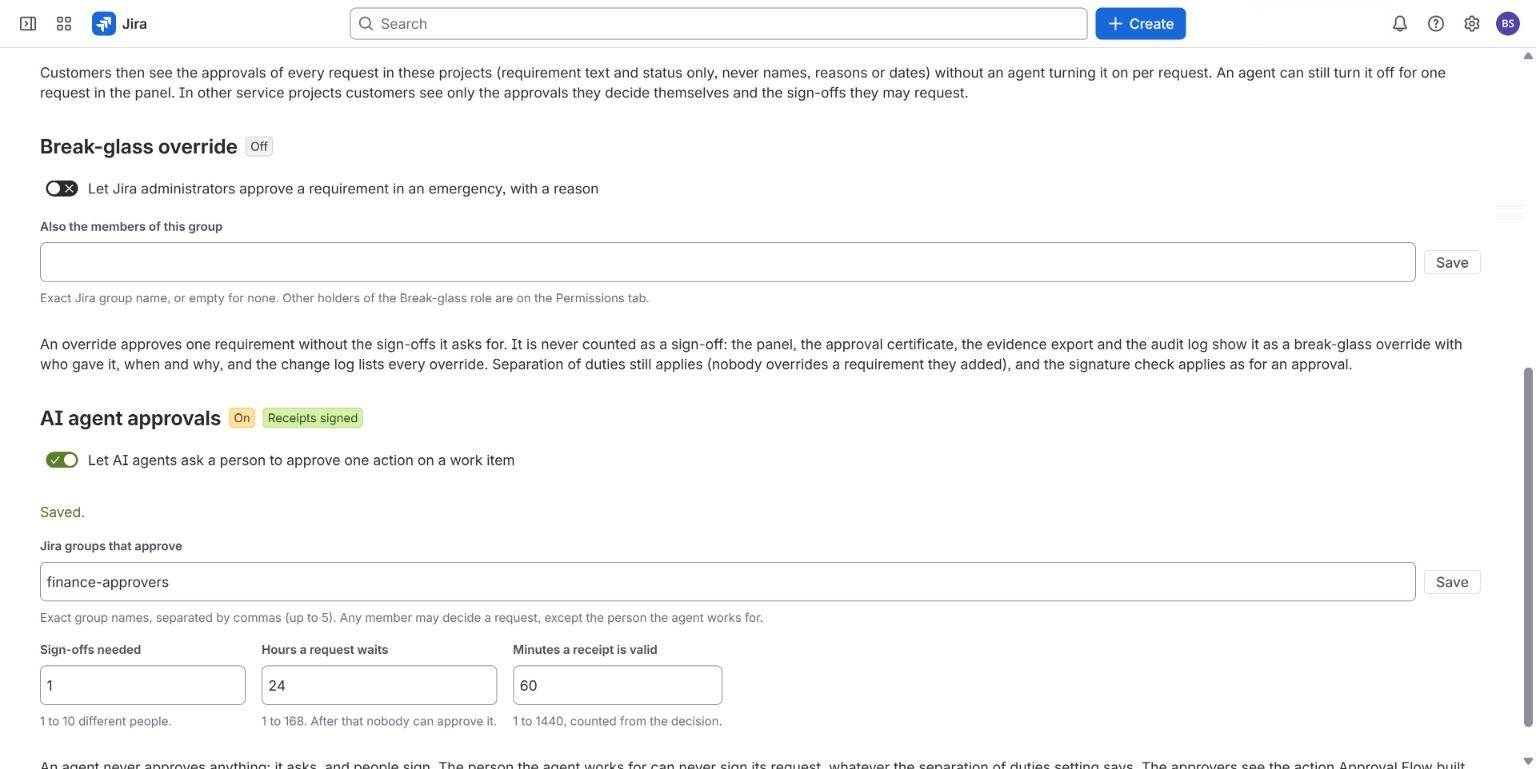
The admin page Approval Flow settings (Jira settings, Apps, then the sidebar) starts with the Governance tab. Two switches there are off until an administrator turns them on:
- Break-glass override lets Jira administrators approve a requirement in an emergency, with a reason. An override is never counted as a sign-off; it is shown as an override, with who gave it, when and why.
- AI agent approvals lets an AI agent ask a person to approve one action on a work item. The administrator names the Jira groups who may decide it. The agent never approves anything itself, and the person the agent works for can never decide its request. The setting is there and saves, but we have not run a live agent request through it yet, so treat it as preview.
4. Optional: require a signature PIN
An administrator can require approvers to type a PIN to approve or reject. Each person sets their own in the panel, under My signature PIN, and a signed receipt then says "signed with PIN". The settings also mention an authenticator code; we have not tested that live, so this page does not cover it.
For the people who ask for sign-off
#1. Add the sign-offs a work item needs
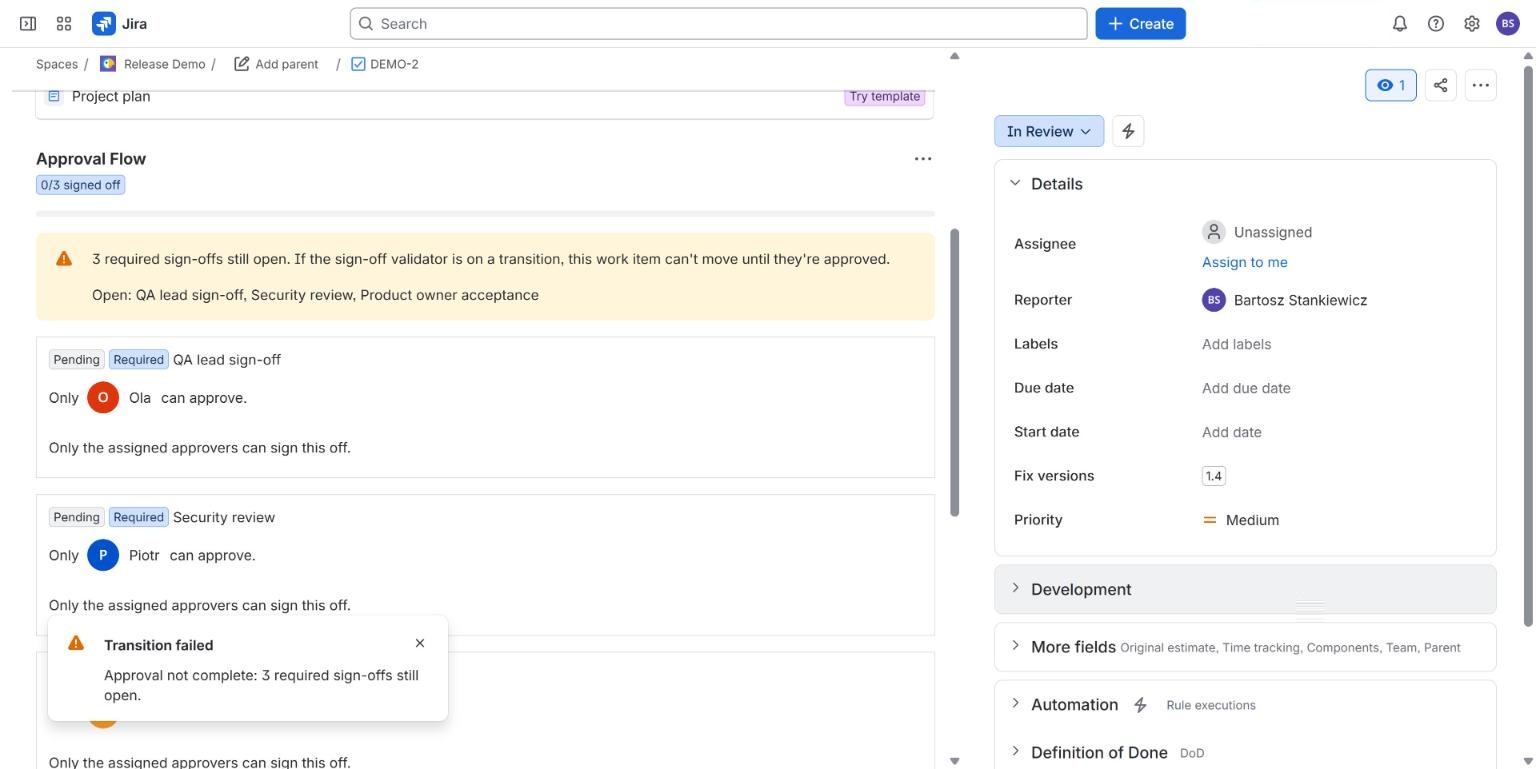
Open the work item, click Apps and choose Approval Flow. An empty work item offers Add a sample sign-off policy, which adds three Required sign-offs: QA lead sign-off, Security review and Product owner acceptance. You can also click Edit requirements and settings, type your own list, mark what is Required and name who may sign each one. A row then says, for example, "Only Ola can approve."
2. Try to move the work item
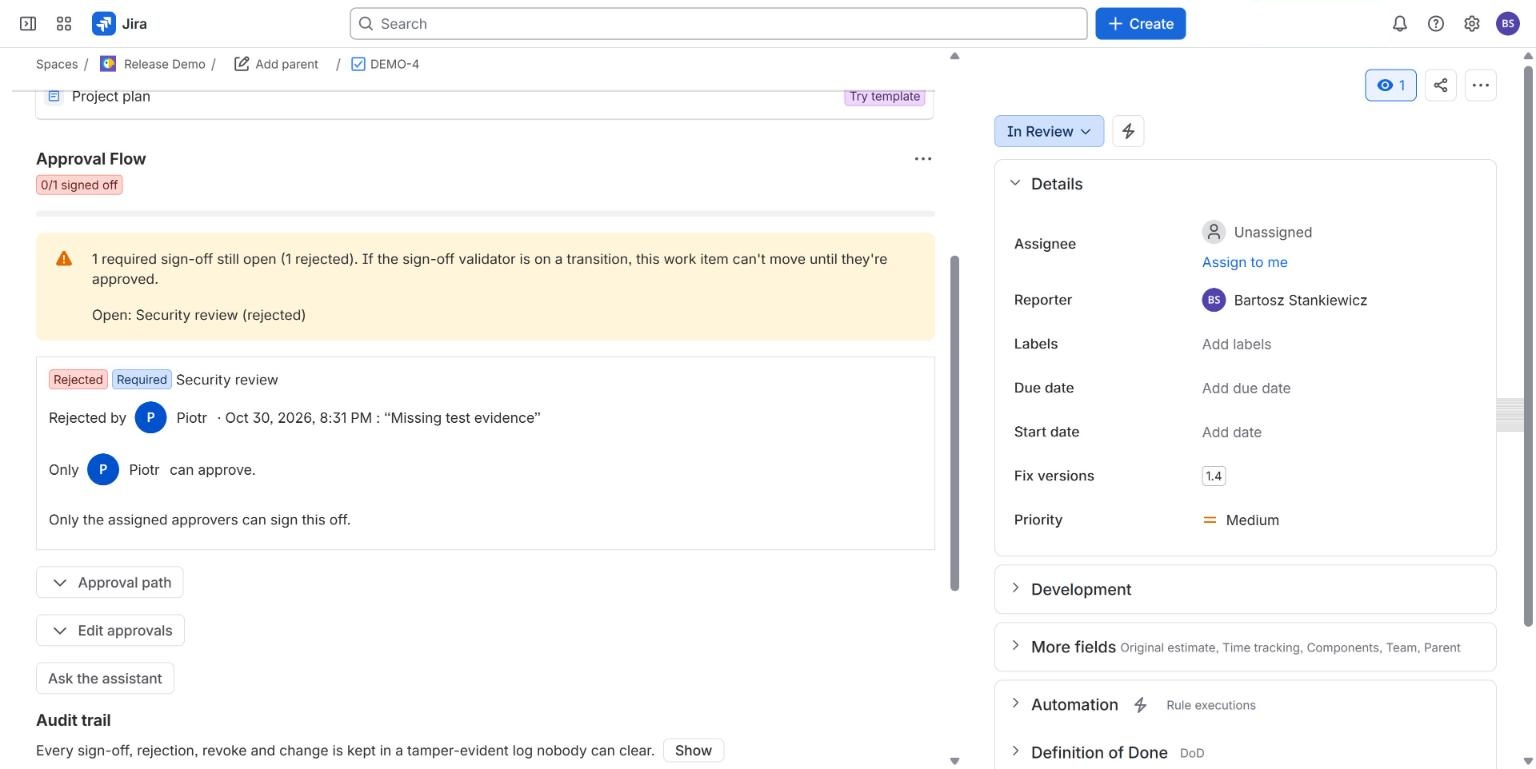
Until the required sign-offs are in, Jira refuses the transition and says how many are open.
3. Nobody approves their own work
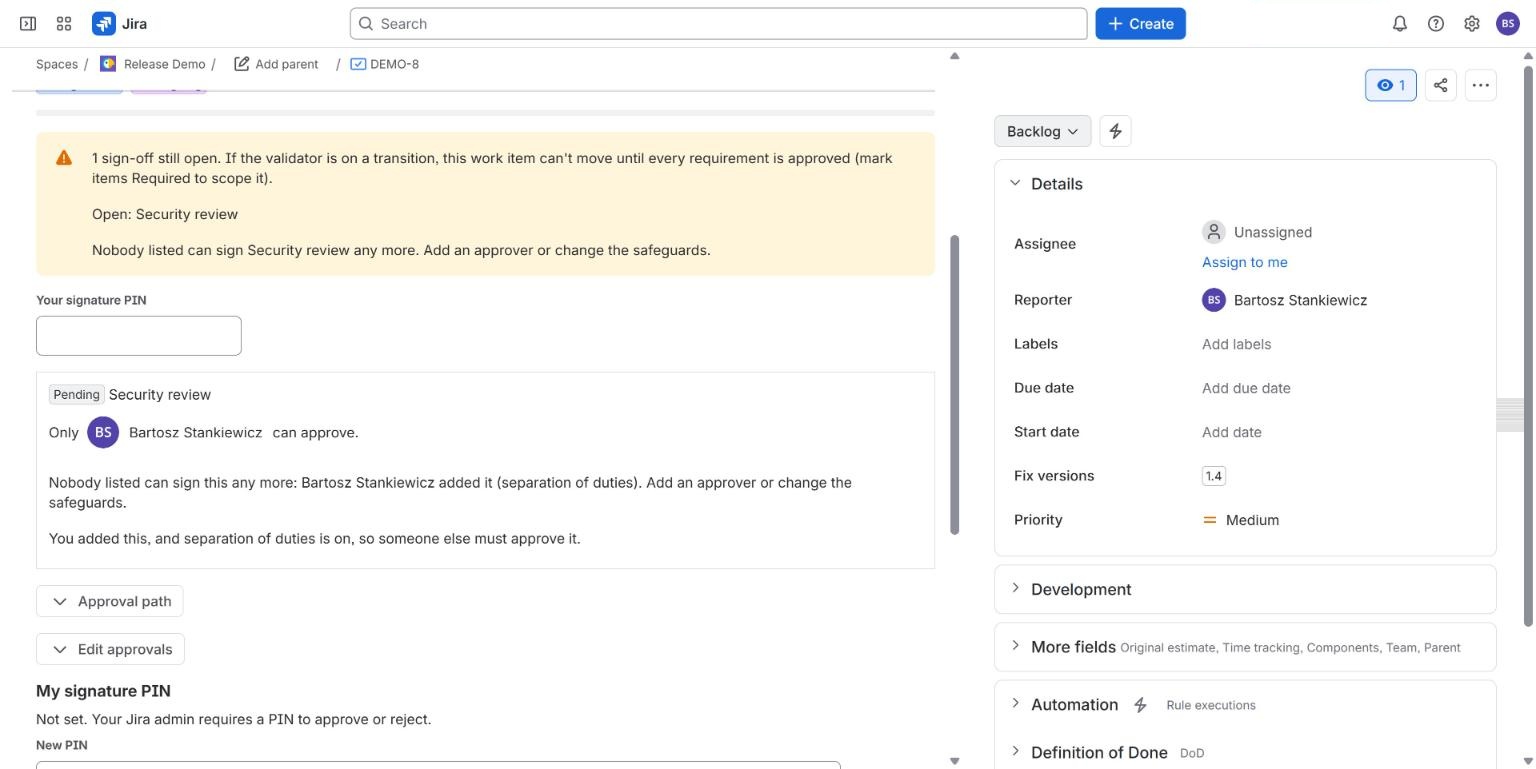
Separation of duties is a setting per requirement. When it is on, the person who added a requirement cannot approve it, and the panel says why. If that leaves nobody who can sign, the panel says so too and tells you to add an approver or change the safeguards.
For the people who give sign-off
#1. Approve or reject
Open the work item. Your own sign-offs come first, each with Approve and Reject. Approving records your name and the time and moves the counter. When the last required sign-off is in, a green message says all required sign-offs are complete, and the transition works.
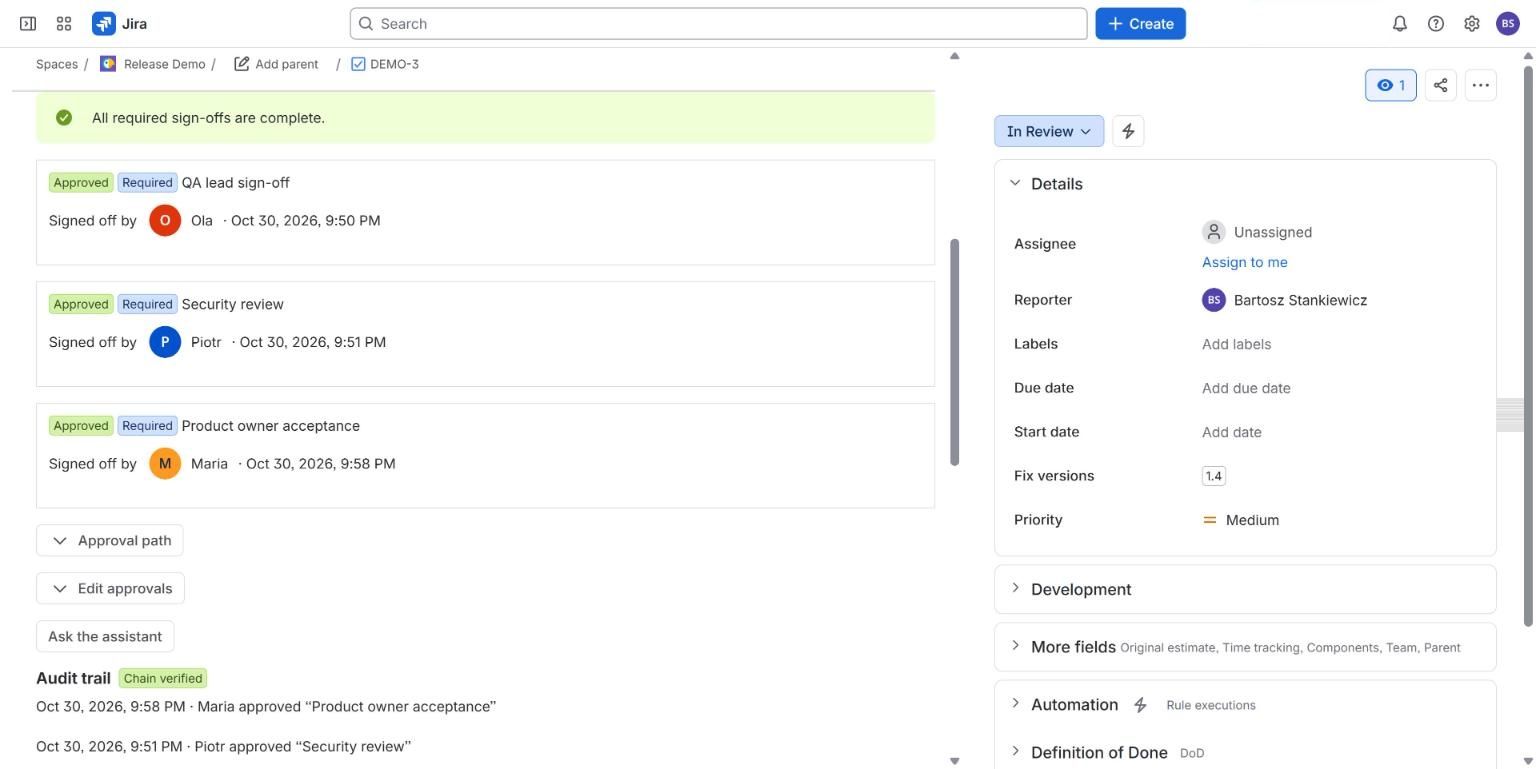
The audit trail lists each decision in order. "Chain verified" means the log checks out against itself: an entry that was changed or removed afterwards would break the check.
2. Rejecting needs a reason
Click Reject and the app asks for a reason; you cannot reject without one. The reason is shown on the sign-off, and the work item stays blocked until the sign-off is approved.
3. Approve many at once, with one PIN
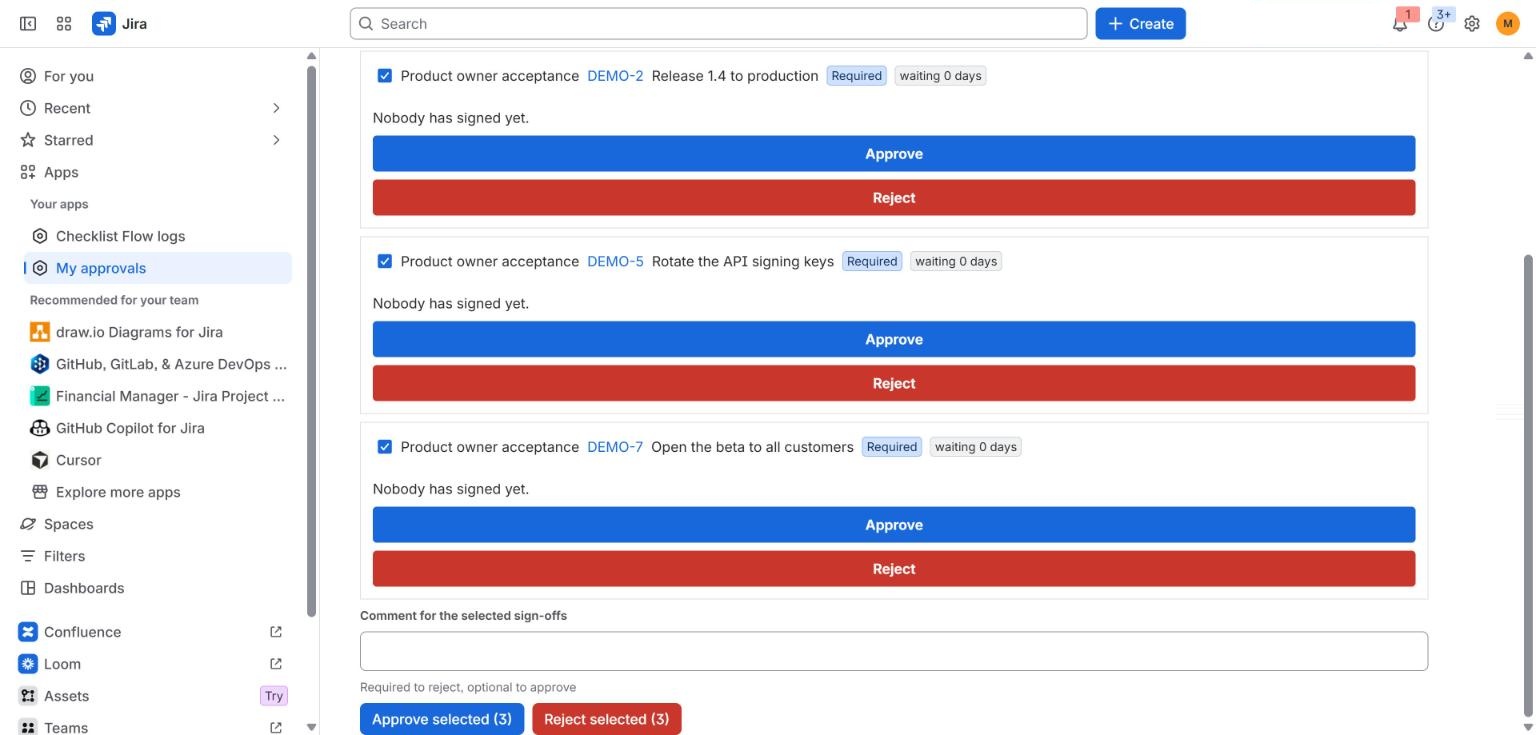
My approvals (Jira, Apps, My approvals) lists everything waiting for you across work items. Tick the rows you want and click Approve selected. If your administrator requires a PIN, you type it once for the whole run. A comment is optional when you approve and required when you reject. Each decision still gets its own entry in the audit trail. On our live test site, selecting three sign-offs and typing the PIN once gave "Approved 3 of 3."
What we have not shown live yet
#These exist in the app, but we have not run them on a live site for this page, so we do not describe them in detail: approving with an authenticator code, an AI agent request going through the gate, the Rovo assistant, quorums above one, substitutes, reminders and expiry, and the customer portal view. The documentation describes them as the code behaves.
What it costs
#Free, with every feature, for sites with up to 10 users. Pricing is graduated, like income tax: the first 100 users are charged at the 1-100 rate, the next 150 at the 101-250 rate and so on, so one more user never makes the total smaller. For example, 250 users cost 100 x $0.90 + 150 x $0.80 = $210.00 per month.
| Team size | Per month | Per year (10 x monthly) |
|---|---|---|
| 10 users (free tier) | $0.00 | $0.00 |
| 50 users | $45.00 | $450.00 |
| 100 users | $90.00 | $900.00 |
| 101 users | $90.80 | $908.00 |
| 250 users | $210.00 | $2,100.00 |
| 500 users | $347.50 | $3,475.00 |
All prices are in USD, list prices through the Atlassian Marketplace. The full table of bands is on the pricing page.
Related
#- Approval Flow for Jira documentation: every feature and setting
- Pricing: every band, with examples from 10 to 500 users
- Approval Flow compared with other Jira apps
- Jira approval templates