How it works · Jira
How Checklist Flow works
Checklist Flow for Jira 3.1.1 is the production version (1 November 2026). Last updated 1 November 2026. On the Atlassian Marketplace.
By Bartosz Stankiewicz, founder, Stanki Guild.
Checklist Flow puts a Definition of Done checklist on a Jira work item and lets your workflow refuse the move to Done until the items marked Required are ticked. This page walks through it twice: first as the Jira administrator who sets it up, then as the person who works on the work item. Every screenshot is from a real Jira Cloud site running the production version, with demo data.
The app is free, with every feature, on sites with up to 10 users. Above that it costs money; the numbers are at the end of this page.
For the Jira administrator
#Done once.
1. Install it from the Marketplace
Checklist Flow for Jira is on the Atlassian Marketplace: Checklist Flow: Definition of Done for Jira. Billing, trials and licences are handled by Atlassian. Installing works like this:
On Atlassian's screens: open the app's Marketplace listing, choose Try it free, pick your site, click Review, then Start free trial. Jira then shows "Adding..." and, a moment later, that the app was installed. On our test site the Review screen read "USD 0 / month", with an estimate that applies after the 30-day free trial.
2. Open the settings page
In Jira click the gear icon, then Marketplace apps. In the sidebar, under the apps section, click Checklist Flow settings. (The gear menu has no item called "Apps"; the sidebar section is the place.)
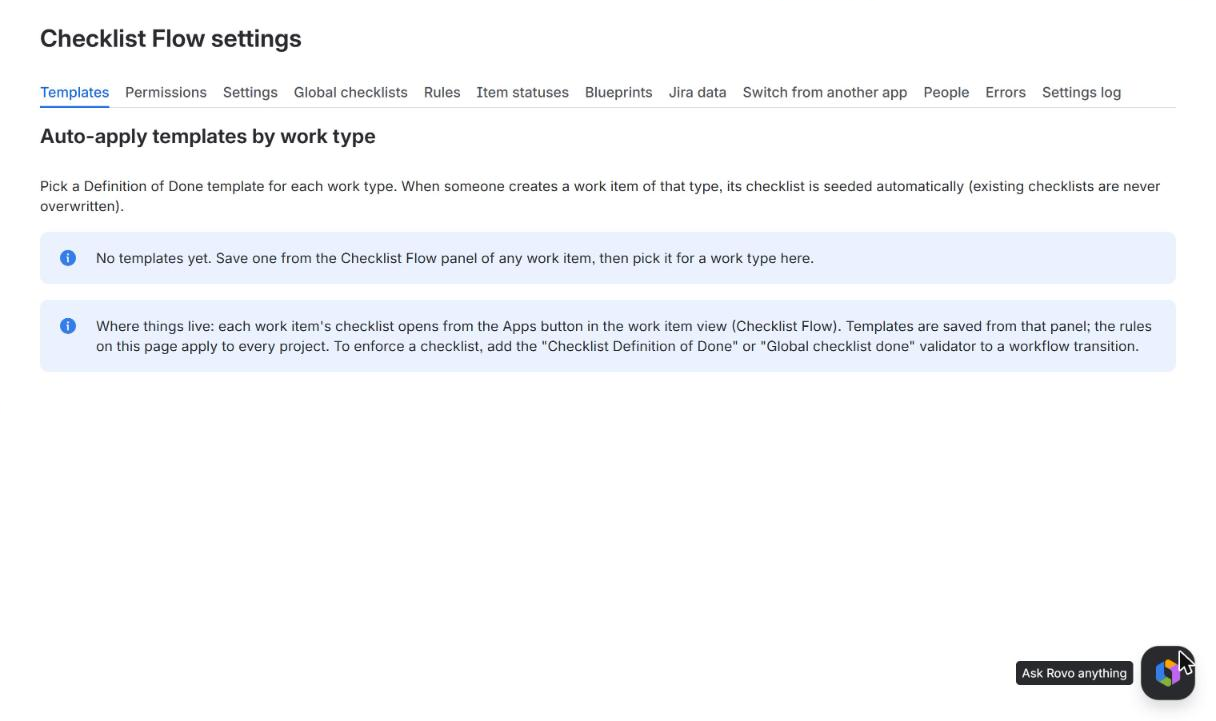
The tabs you will use first are Templates and Permissions. The page also explains where things live: each work item's checklist opens from the Apps button on the work item, and to enforce a checklist you add a validator to a workflow transition.
3. Decide who may do what
Open the Permissions tab. Roles say who may change what. Two matter most:
- Control owner may make a control weaker: un-require an item, remove a required item or its condition, or allow checking in any order. Project admins hold it by default.
- Configurer sets up requirements on a work item, and Checker ticks and unticks items. Both are held by everyone to start with.
The page also has an Auditor (read-only) role, who sees reports, people and evidence but cannot change anything, and a Compliance manager role. Add people with + Add under a role, then click Save changes. Changes to roles are logged.
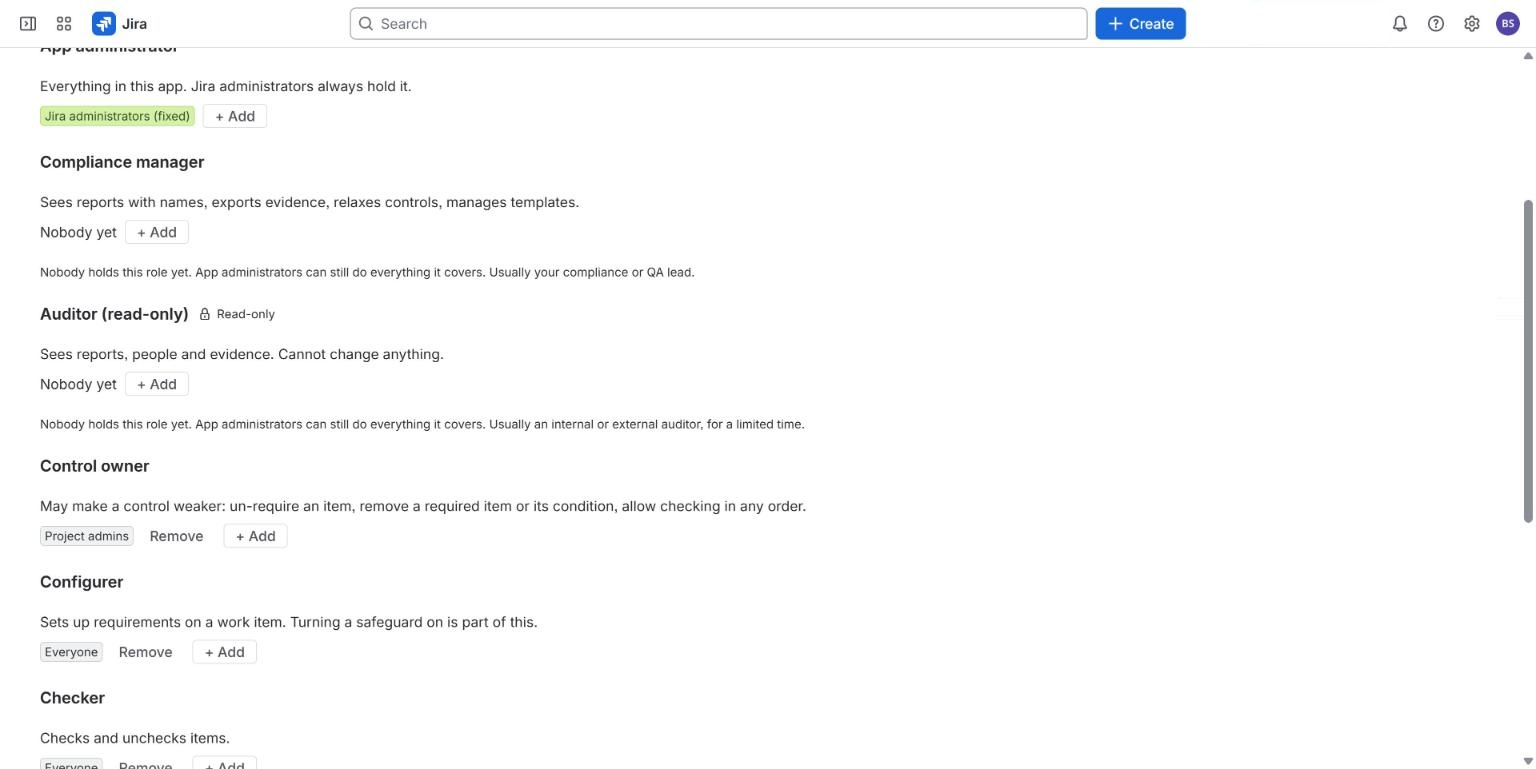
One quirk in this version: after you pick Person as the type of holder, the page may jump back to the top. The form is still there; scroll down to it. Save changes sits at the bottom of the page.
4. Make Jira refuse Done while Required items are open
This is the step that turns a checklist into a rule. In Jira's workflow editor, select the transition into Done, add a validator, and choose Checklist Definition of Done. Publish the workflow. Atlassian's own screens and button names apply here, and the validator is configured in Atlassian's new workflow editor.
From then on, a work item with an open Required item cannot move through that transition. Only Required items block the move. If no item on a work item is marked Required, every item counts instead.
5. Optional: start every work item with the right items
On the Templates tab you can pick a template for each work type. When someone creates a work item of that type, its checklist is filled in automatically. Existing checklists are never overwritten.
For everyone who works on work items
#No admin rights are needed for any of this.
1. Open the checklist
Open a work item, click the Apps button under its title and choose Checklist Flow. A work item with no checklist shows an empty state with a button, Load a sample Definition of Done. Click it to see six items, the first three marked Required.
2. Tick items
Tap anywhere on a row to tick it. The counter and the progress bar move at once, and about a second or two later, once the change is saved, a bar with Undo appears at the bottom of the panel. The yellow banner always says how many Required items are still open and names them.
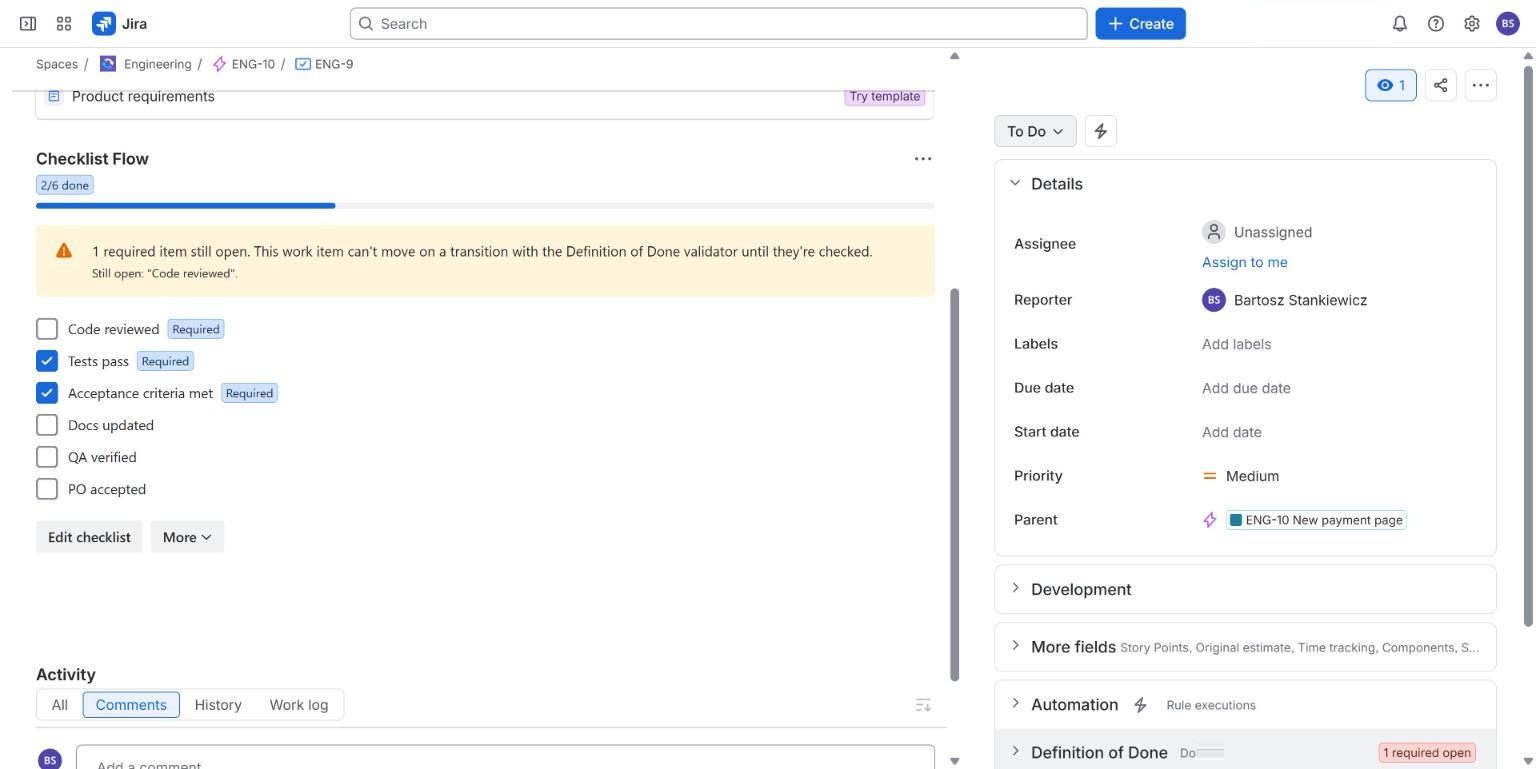
To add your own items click Edit checklist, type an item and press Enter, or paste a whole list at once. The Required switch marks what must be done first. N/A marks an item as not applicable and counts it as satisfied. The panel works on a phone as well: ticks made there show up on the desktop.
3. The moment Jira says no
If you try to move the work item to Done while a Required item is open, Jira refuses and names the open item.
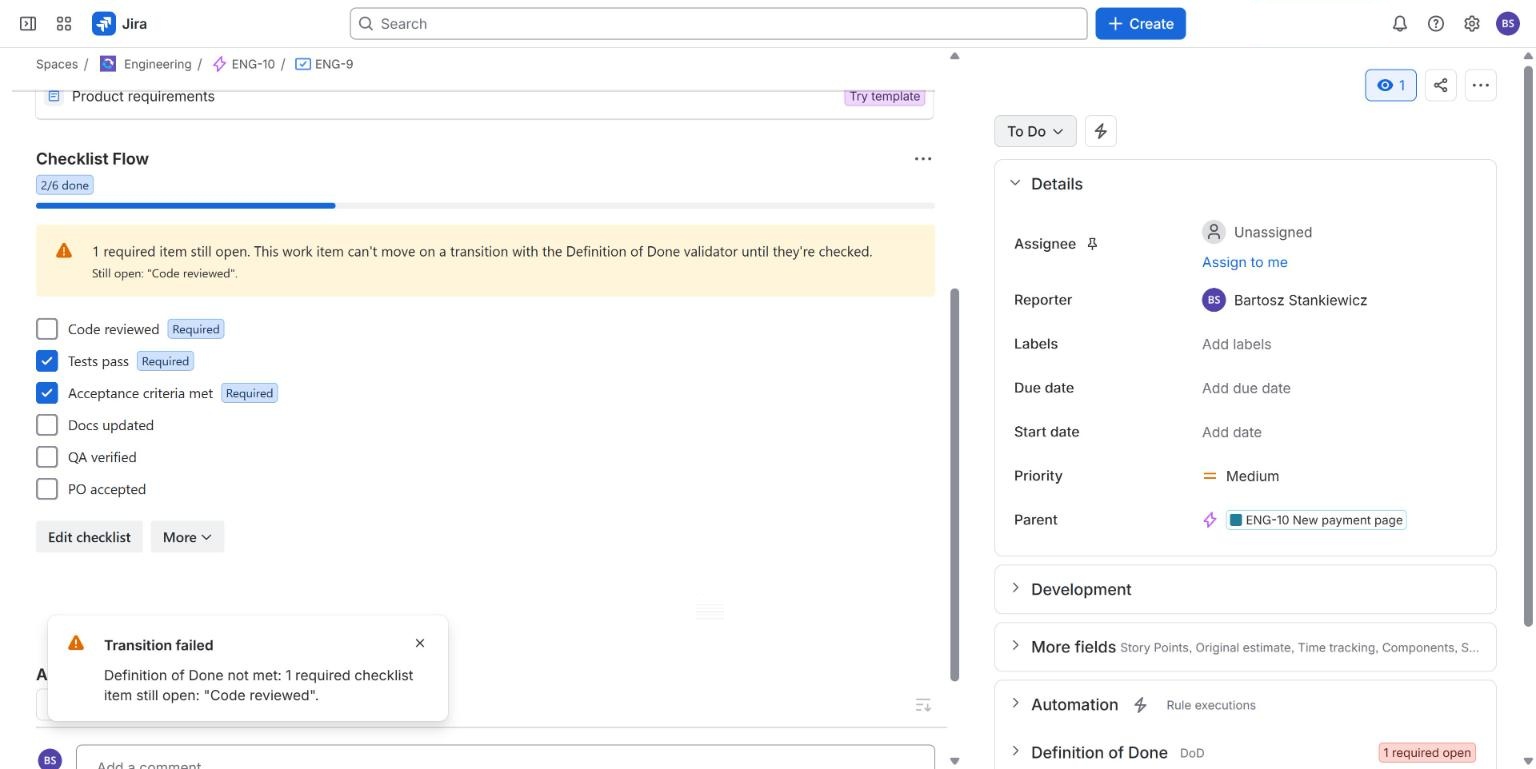
Tick the item and move the work item again. This time it goes through.
For the person who has to answer for the release
#DoD Health: which work items cannot be Done yet
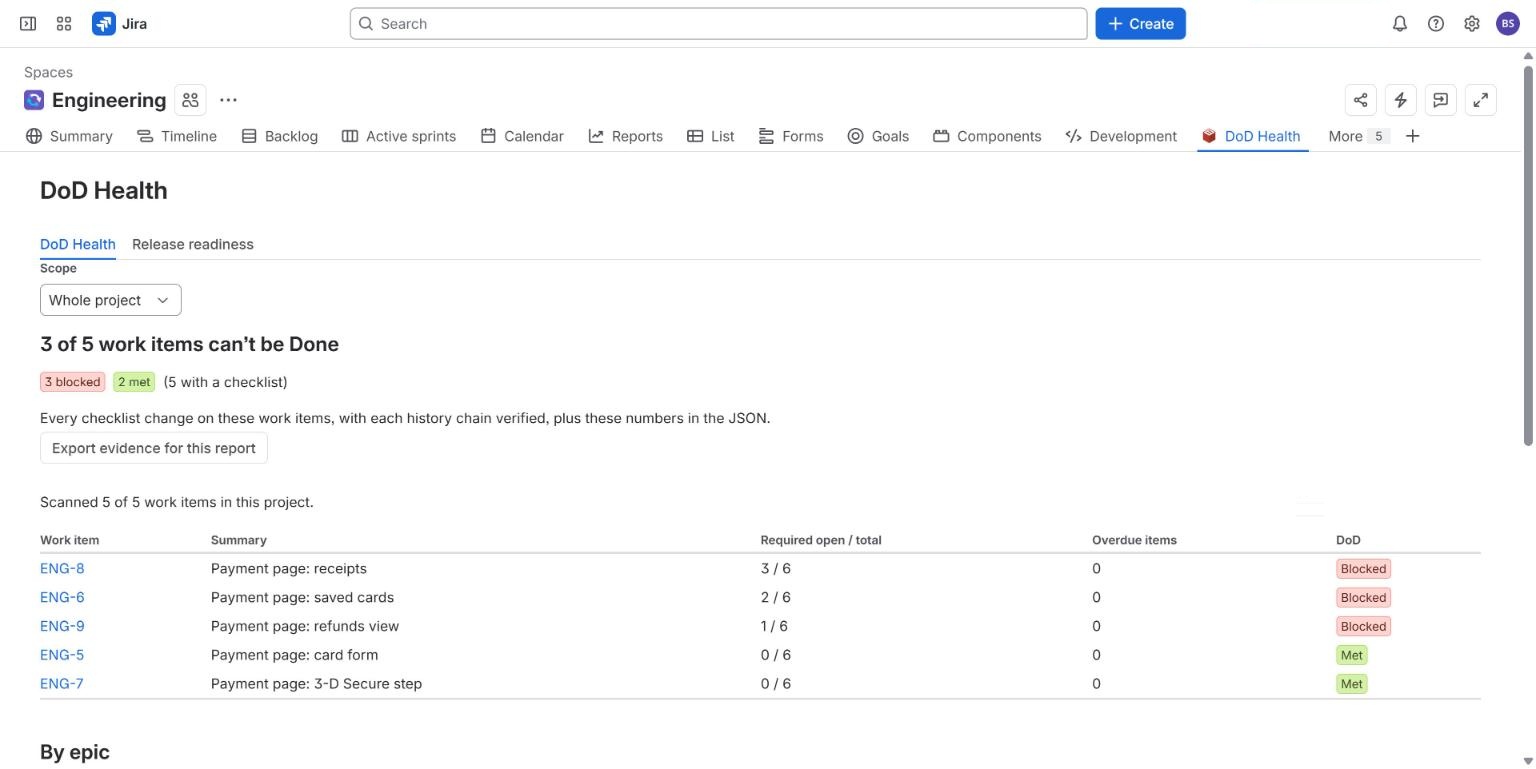
The DoD Health tab in a project lists every work item that has a checklist, how many Required items are open, how many are overdue and whether the Definition of Done is met. The headline is a plain count. Here, 3 of 5 work items cannot be Done.
Release readiness: go or no-go
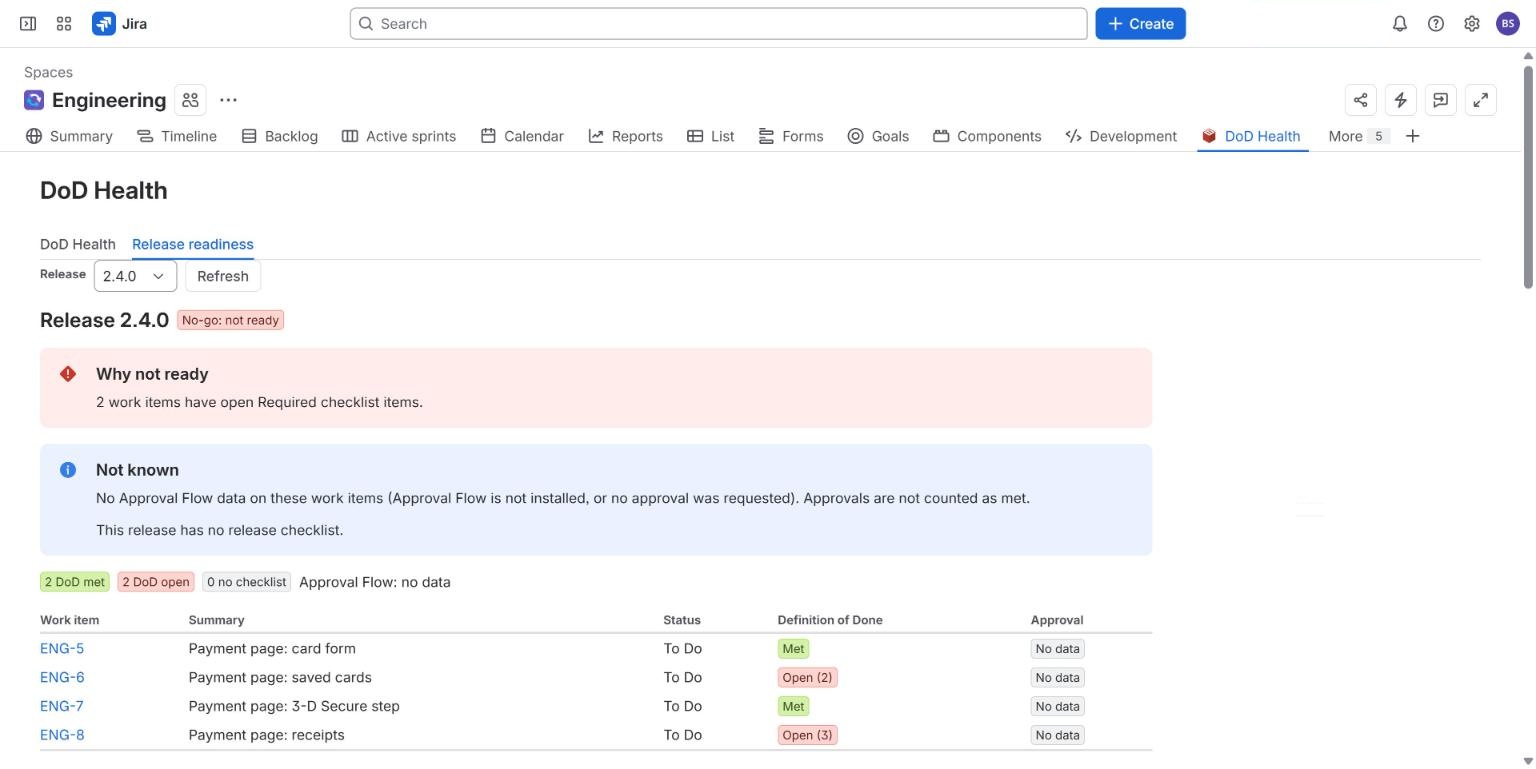
The second tab, Release readiness, takes a release (a fix version) and answers whether it is ready. It says No-go and why. It also lists what it cannot know: here, that no Approval Flow data exists on these work items, and that the release has no release checklist. It never turns a missing answer into a Go.
What we have not shown live yet
#These exist in the app, but we have not run them on a live site for this page, so we do not describe them here: agents ticking items through Rovo or MCP tools (a Preview feature; an agent's tick on a Required item is designed to wait for a person, and that has not been run live), DoD Health per sprint, the "Global checklist done" validator, team-managed projects, and importing from other checklist apps. The documentation describes them as the code behaves.
What it costs
#Free, with every feature, for sites with up to 10 users. Pricing is graduated, like income tax: the first 100 users are charged at the 1-100 rate, the next 150 at the 101-250 rate and so on, so one more user never makes the total smaller. For example, 250 users cost 100 x $0.80 + 150 x $0.58 = $167.00 per month.
| Team size | Per month | Per year (10 x monthly) |
|---|---|---|
| 10 users (free tier) | $0.00 | $0.00 |
| 50 users | $40.00 | $400.00 |
| 100 users | $80.00 | $800.00 |
| 101 users | $80.58 | $805.80 |
| 250 users | $167.00 | $1,670.00 |
| 500 users | $219.50 | $2,195.00 |
All prices are in USD, list prices through the Atlassian Marketplace. The full table of bands is on the pricing page.
Related
#- Checklist Flow for Jira documentation: every feature and setting
- Pricing: every band, with examples from 10 to 500 users
- Checklist Flow compared with other Jira apps
- Jira checklist templates